
前言
Prometheus作为云原生时代最流行的监控系统之一,早已超越了传统“CPU、内存、磁盘”的基础监控范畴。但很多开发者和运维工程师仍有一个共同的疑问:
“我的业务有特殊指标(比如队列长度、订单积压数、API 成功率),Prometheus能监控吗?”
答案是:完全可以!而且比你想象的更简单。
Prometheus 的强大之处不仅在于它丰富的生态和灵活的查询语言,更在于其开放的 指标暴露机制——只要你的服务能提供符合规范的 /metrics接口,Prometheus就能抓取、存储、告警。
本文将带你从零开始,深入浅出地讲解:
- 什么是Prometheus自定义指标;
- 如何用Python(或其他语言)快速编写一个Exporter暴露你的业务数据;
- 如何在Prometheus中配置抓取与告警规则;
- 如何通过Alertmanager实现告警;
无论你是想监控一个脚本的执行状态、数据库中的待处理任务,还是私有服务的内部计数器,只要数据能被程序读取,就能被Prometheus监控。
让我们一起把“看不见的业务状态”,变成“可度量、可告警、可追溯”的可观测指标!
1.配置自定义参数监控(入门)
😎场景
想监控一个自定义业务指标,比如:
- “当前系统中待处理的任务数量”
1.1 下载必要工具
建立一个专门为研究“自定义参数”的目录:
mkdir /ceshi
验证是否有python,我这里使用的是python3:
python3 --version
python3 -c "import prometheus_client; print('OK')"

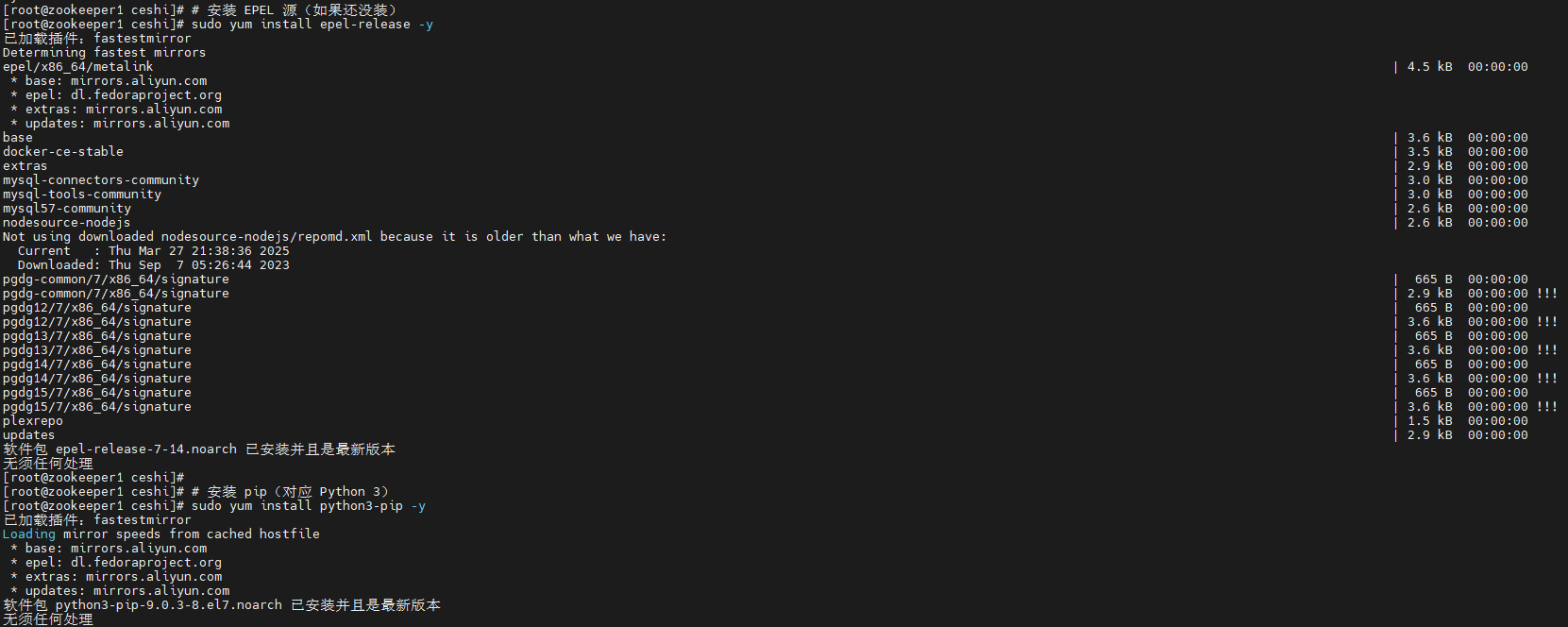
若是没有,可以先执行这两条命令:
sudo yum install epel-release -y
sudo yum install python3-pip -y
从Python官方软件仓库下载并安装prometheus_client这个第三方库:
pip install prometheus_client

1.2 创建自定义Exporter
编写一个暴露自定义指标的Web服务(Exporter):
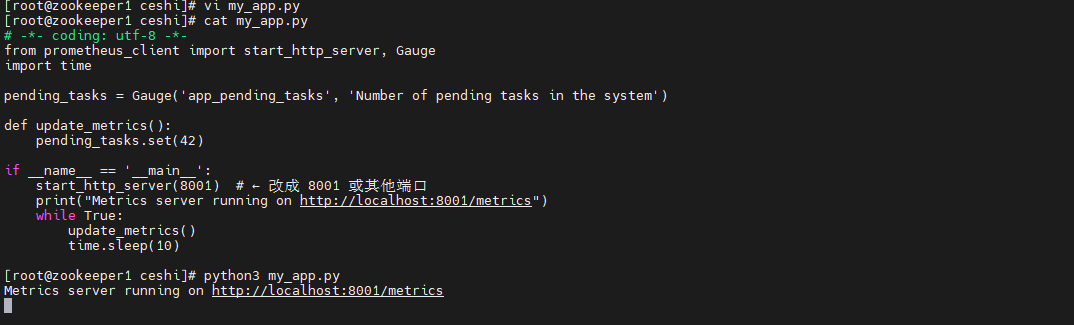
vi my_app.py
# -*- coding: utf-8 -*-
from prometheus_client import start_http_server, Gauge
import time

pending_tasks = Gauge('app_pending_tasks', 'Number of pending tasks in the system')

def update_metrics():
    pending_tasks.set(42)

if __name__ == '__main__':
    start_http_server(8001)  # ← 改成 8001 或其他端口
    print("Metrics server running on http://localhost:8001/metrics")
    while True:
        update_metrics()
        time.sleep(10)
1.3 运行Exporter
运行这个服务:
python my_app.py
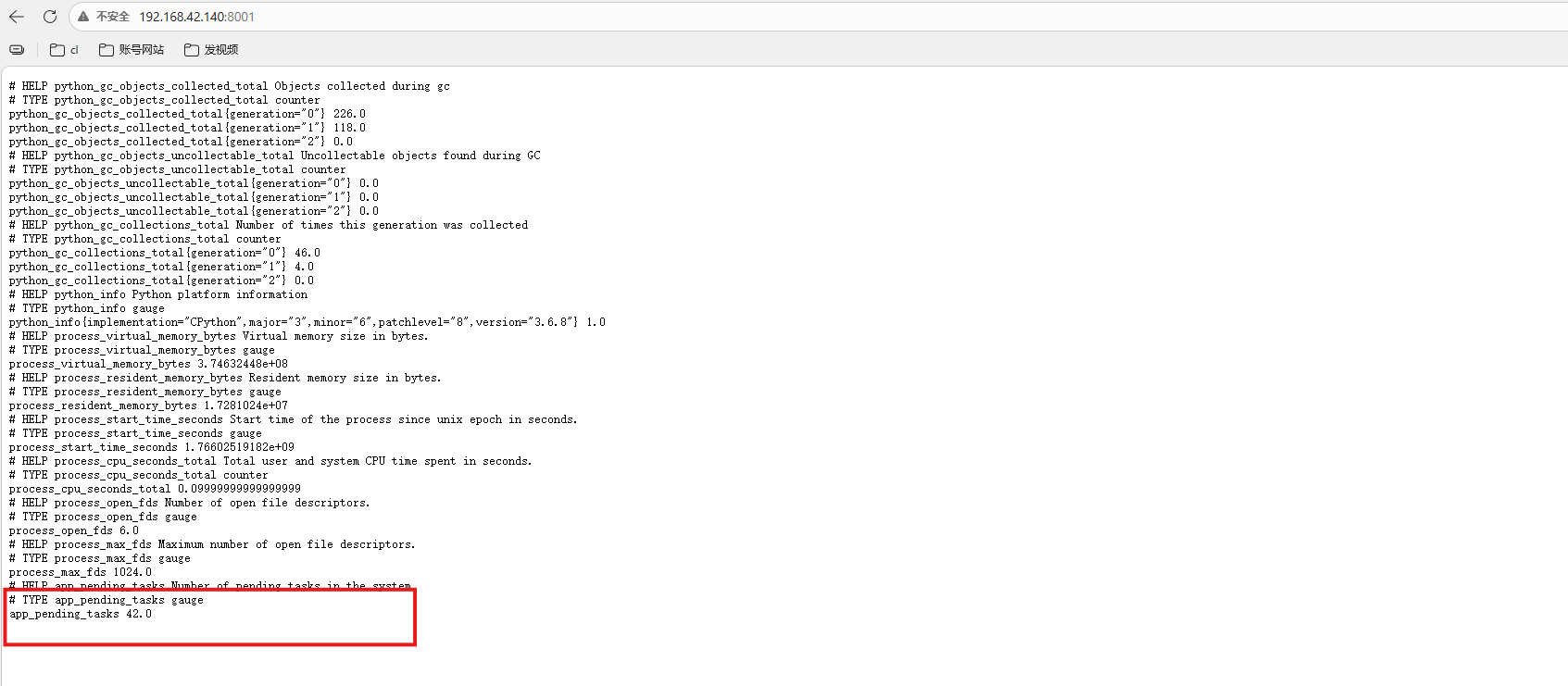
访问 http://ip:8001/metrics,你会看到:
# HELP app_pending_tasks Number of pending tasks in the system
# TYPE app_pending_tasks gauge
app_pending_tasks 42.0
这是prometheus可以识别到的格式:
1.4 配置prometheus
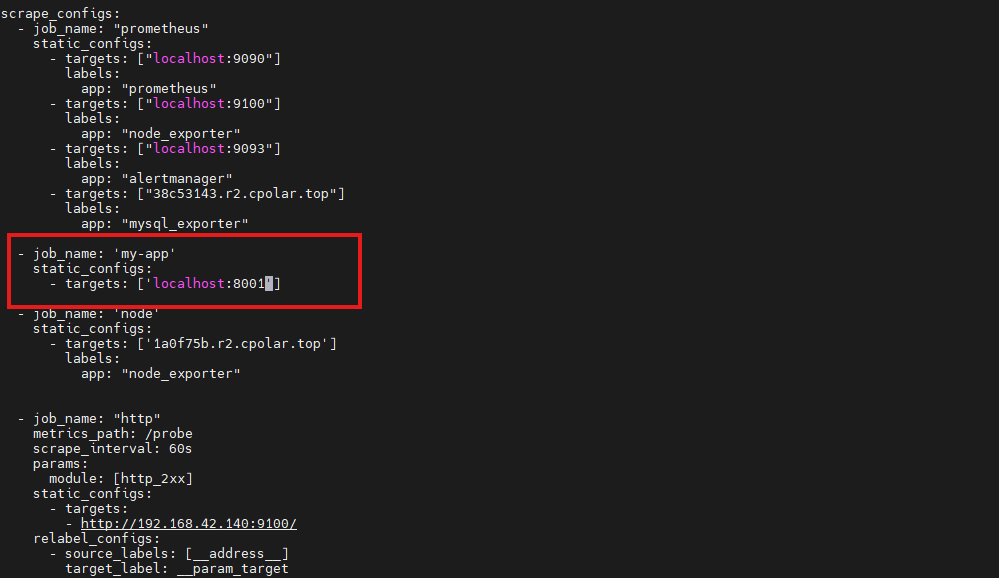
找prometheus安装目录,修改配置文件:
vi prometheus.yml
添加下面信息:
  - job_name: 'my-app'
    static_configs:
      - targets: ['localhost:8001']
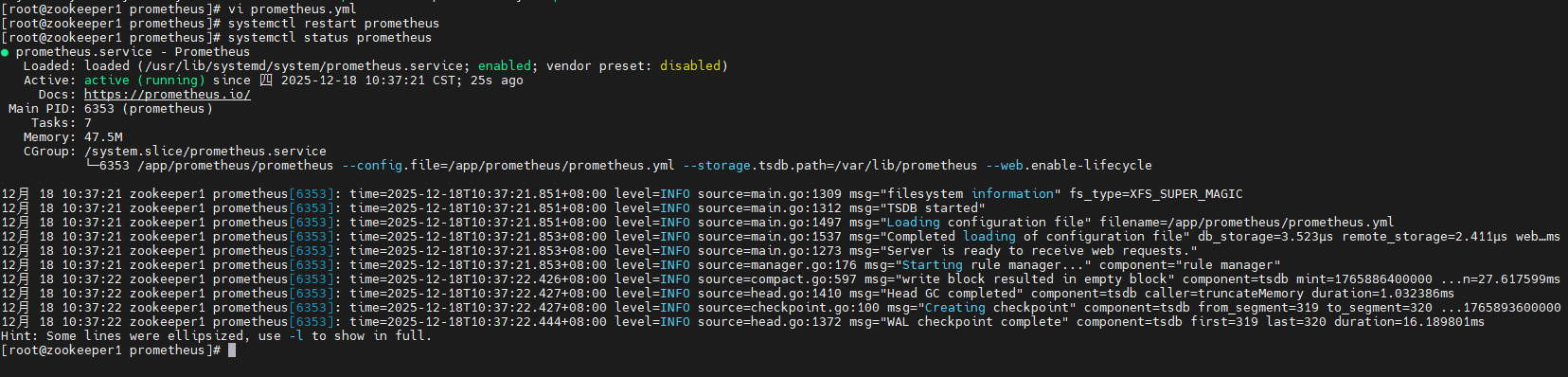
保存退出后,重启prometheus服务:
systemctl restart prometheus
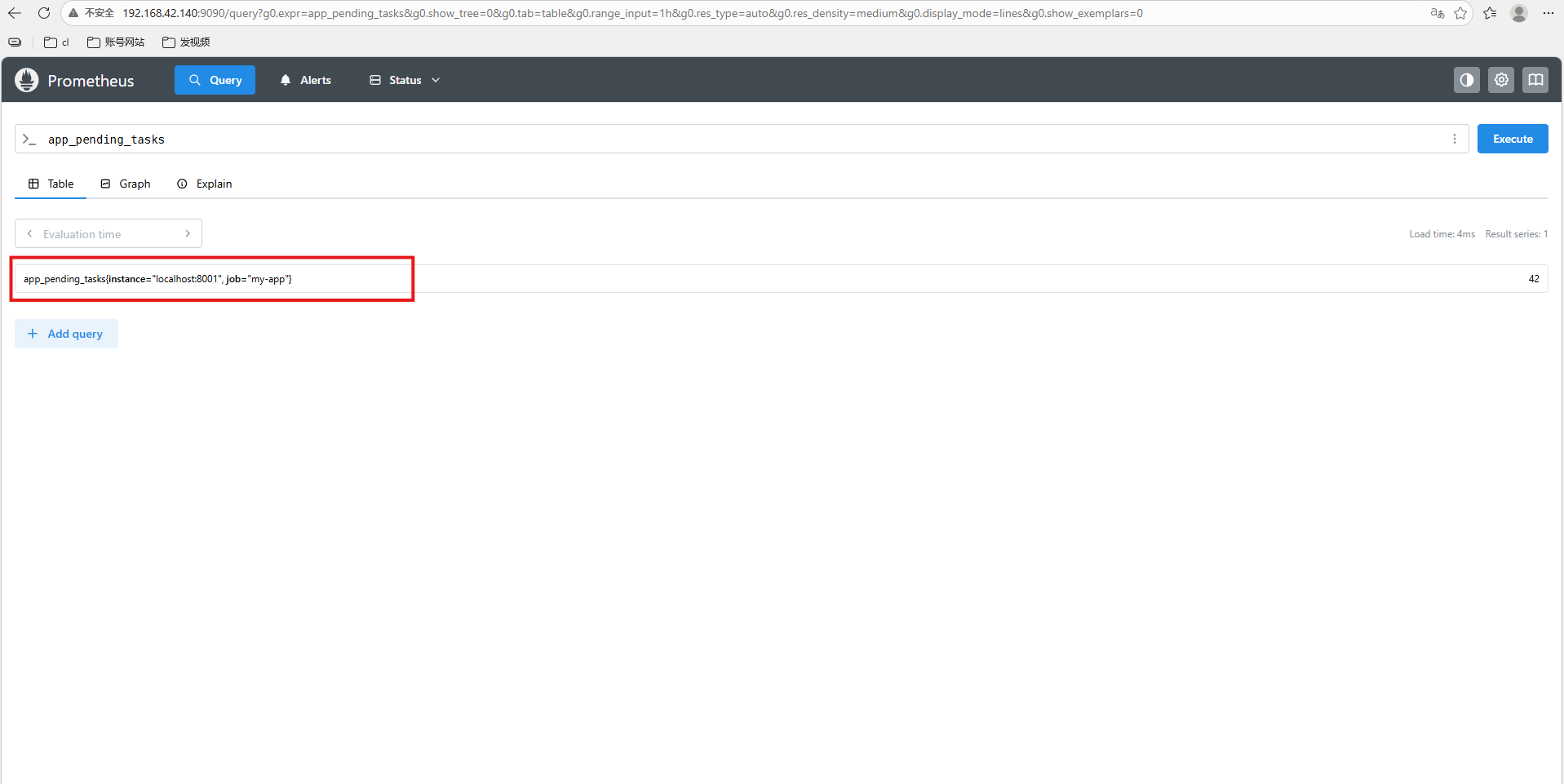
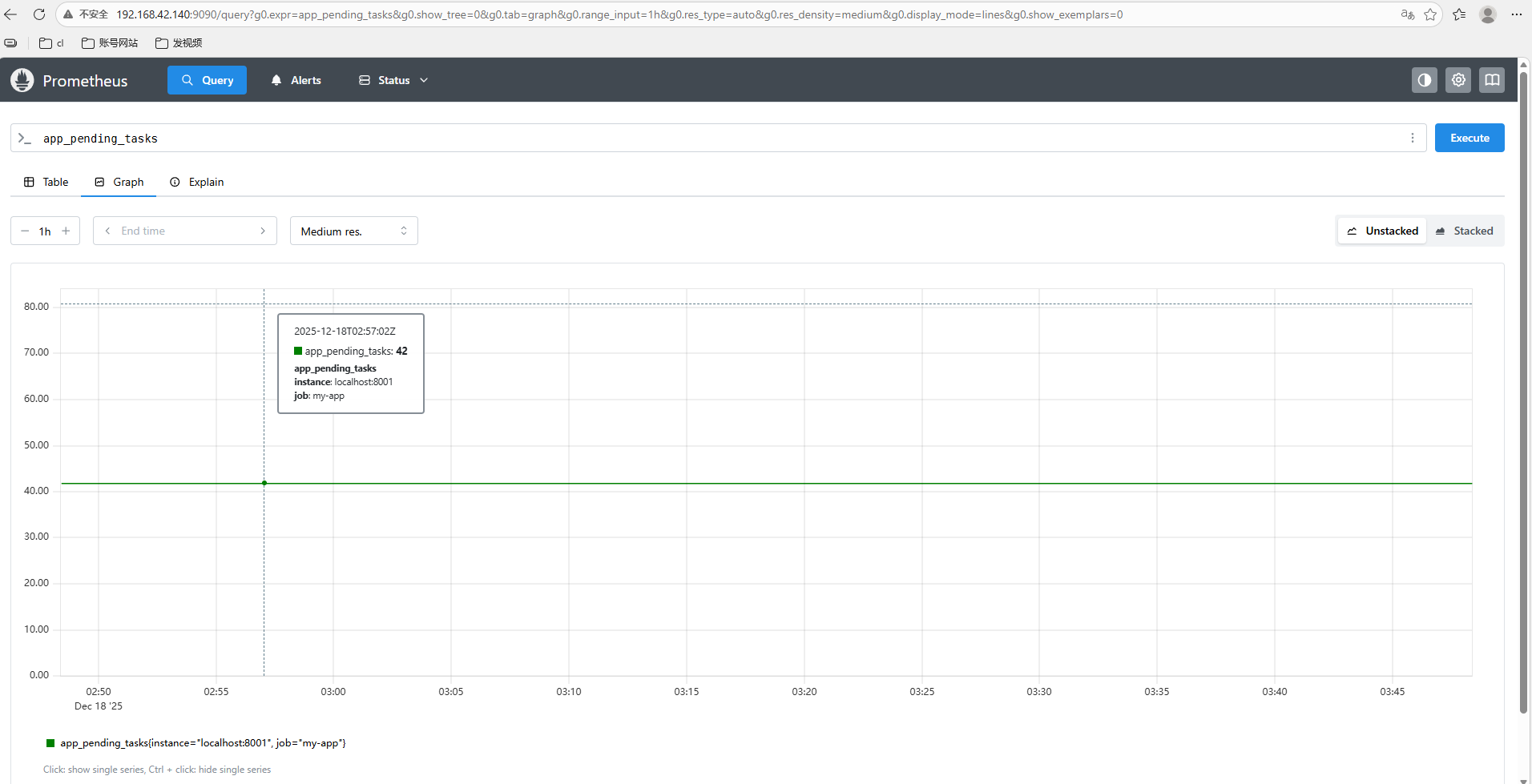
打开 Prometheus Web UI(通常是 http://ip:9090),搜索:
app_pending_tasks
就能看到值 42,并可做告警、绘图等操作。
2.配置自定义参数监控(进阶)
用Prometheus监控你主机上某个动态变化的自定义参数(不是固定值),当它超过阈值时,通过Alertmanager发出告警。
2.1 场景介绍
😎场景示例:监控“待处理任务数”(动态变化)
假设你的业务系统会不断产生任务:
- 存放在 /tmp/pending_tasks.txt 文件中,内容是一个数字(如 42)。这个数字每分钟可能变化。
你希望:
- 当pending_tasks > 50持续2分钟 → 触发告警;
😎整体架构
[你的脚本]
   ↓ (暴露 /metrics)
[Prometheus] ← 抓取指标
   ↓ (评估规则)
[Alertmanager] ← 发送告警
   ↓
[你收到通知]
2.2 创建自定义Exporter
创建/tmp/pending_tasks.txt文件:
echo 42 > /tmp/pending_tasks.txt
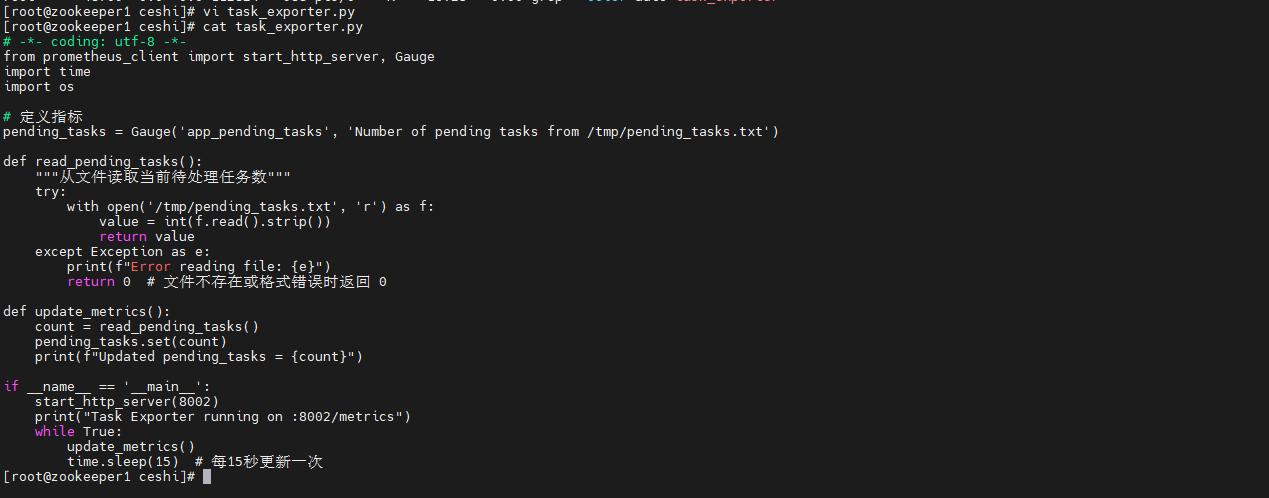
创建文件task_exporter.py:
# -*- coding: utf-8 -*-
from prometheus_client import start_http_server, Gauge
import time
import os

# 定义指标
pending_tasks = Gauge('app_pending_tasks', 'Number of pending tasks from /tmp/pending_tasks.txt')

def read_pending_tasks():
    """从文件读取当前待处理任务数"""
    try:
        with open('/tmp/pending_tasks.txt', 'r') as f:
            value = int(f.read().strip())
            return value
    except Exception as e:
        print(f"Error reading file: {e}")
        return 0  # 文件不存在或格式错误时返回 0

def update_metrics():
    count = read_pending_tasks()
    pending_tasks.set(count)
    print(f"Updated pending_tasks = {count}")

if __name__ == '__main__':
    start_http_server(8002)
    print("Task Exporter running on :8002/metrics")
    while True:
        update_metrics()
        time.sleep(15)  # 每15秒更新一次
2.3 运行Exporter
执行命令:
python3 task_exporter.py &

验证指标:
# 先模拟数据
echo 60 > /tmp/pending_tasks.txt

# 查看指标
curl http://localhost:9100/metrics | grep app_pending_tasks

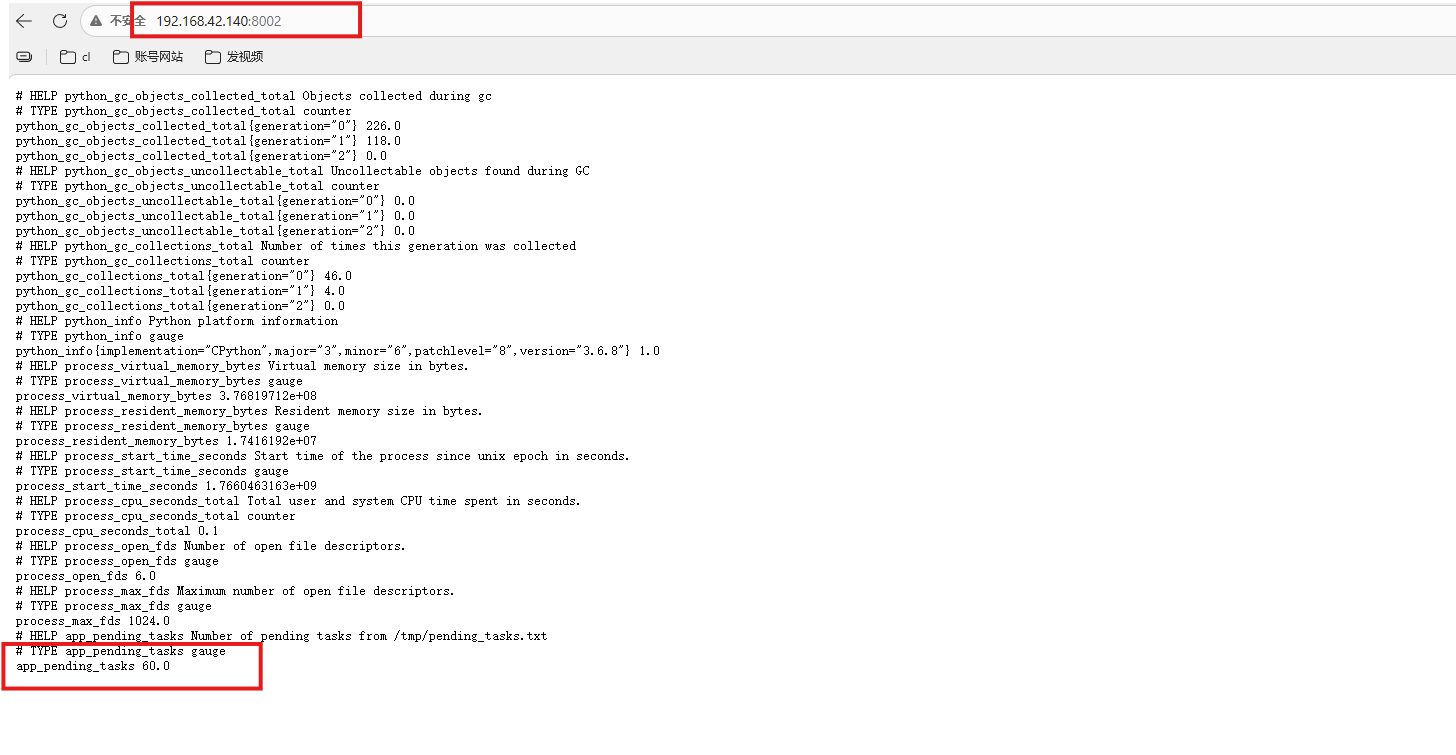
访问 http://ip:8002/metrics,你会看到:
app_pending_tasks 60.0
2.4 配置Prometheus抓取及告警
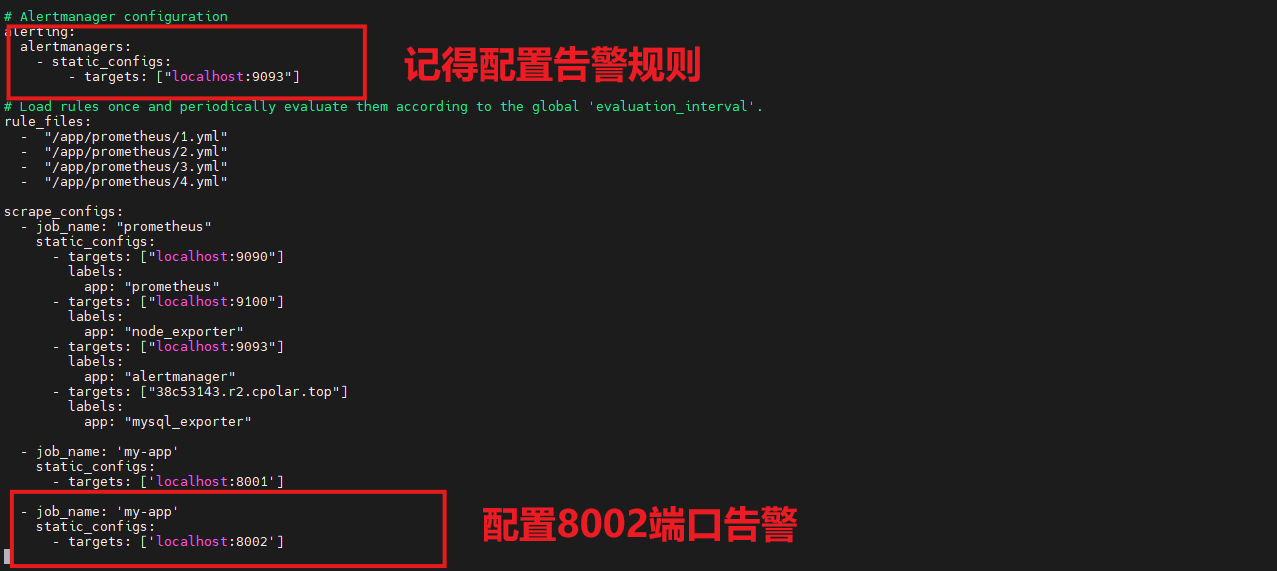
编辑prometheus.yml:
  - job_name: 'task'
    static_configs:
      - targets: ['localhost:8002']
还不太了解alertmanager的小伙伴可以参考这篇文章哦,里面包含了如何使用QQ邮箱告警,需要的小伙伴快去吧:告别宕机!零基础搭建服务器监控告警系统!小白也能学会!
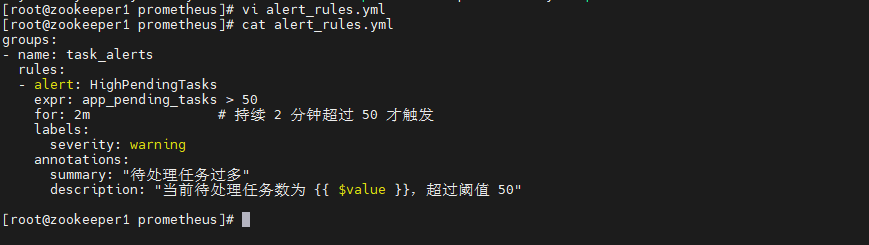
创建告警文件:
vi alert_rules.yml
groups:
- name: task_alerts
  rules:
  - alert: HighPendingTasks
    expr: app_pending_tasks > 50
    for: 2m                # 持续 2 分钟超过 50 才触发
    labels:
      severity: warning
    annotations:
      summary: "待处理任务过多"
      description: "当前待处理任务数为 {{ $value }},超过阈值 50"
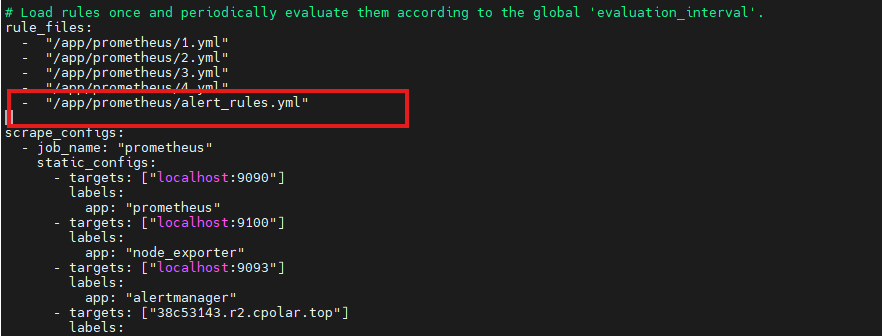
配置prometheus添加告警文件:
保存退出后,重启prometheus服务:
systemctl restart prometheus
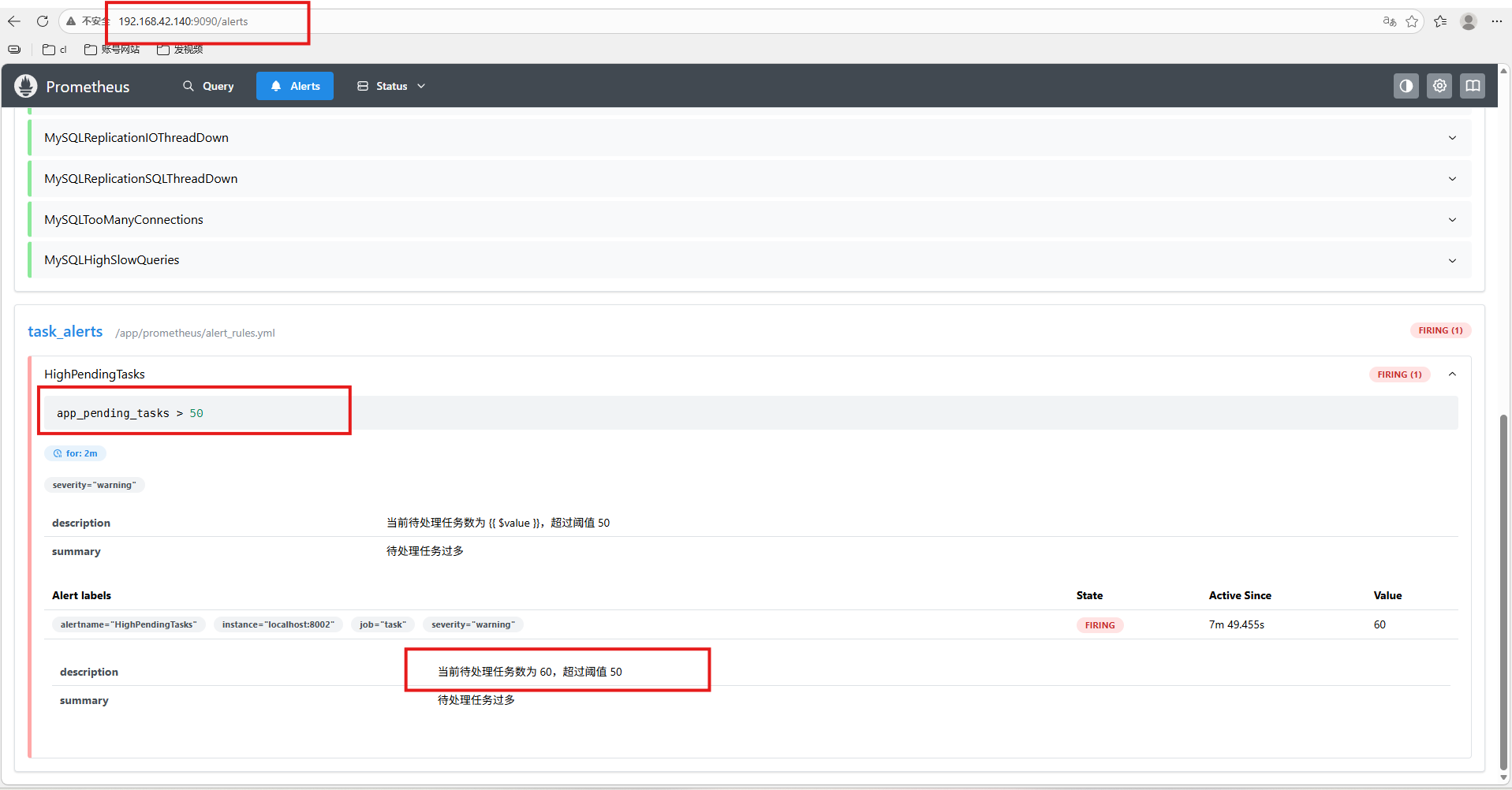
打开 Prometheus Web UI(通常是 http://ip:9090),前面我们编辑的文件是60,系统识别到比50大,所以一直在告警:
3.配置自定义参数监控(高级)
3.1 场景介绍
监控指定目录下“积压文件数量”并告警:
😎你的系统有一个数据处理流程:
- 外部程序不断向 /data/incoming/ 目录写入新文件(如 .json、.csv);
- 另一个消费者程序会读取并处理这些文件,处理完后移动到 /data/archived/;
- 如果消费者挂了或变慢,/data/incoming/ 中的文件会不断堆积。
😎你希望:
- 实时监控 /data/incoming/ 目录下的待处理文件数量;
- 当 文件数 > 100持续5分钟 → 触发告警;
- 告警信息包含当前文件数和目录路径。
-
这个指标的特点:动态变化(随业务实时增减);
- 非系统指标(CPU/内存等无法反映此问题);
- 高业务价值(直接反映数据处理是否健康);
- 可扩展(可监控多个目录、按文件类型过滤等)。
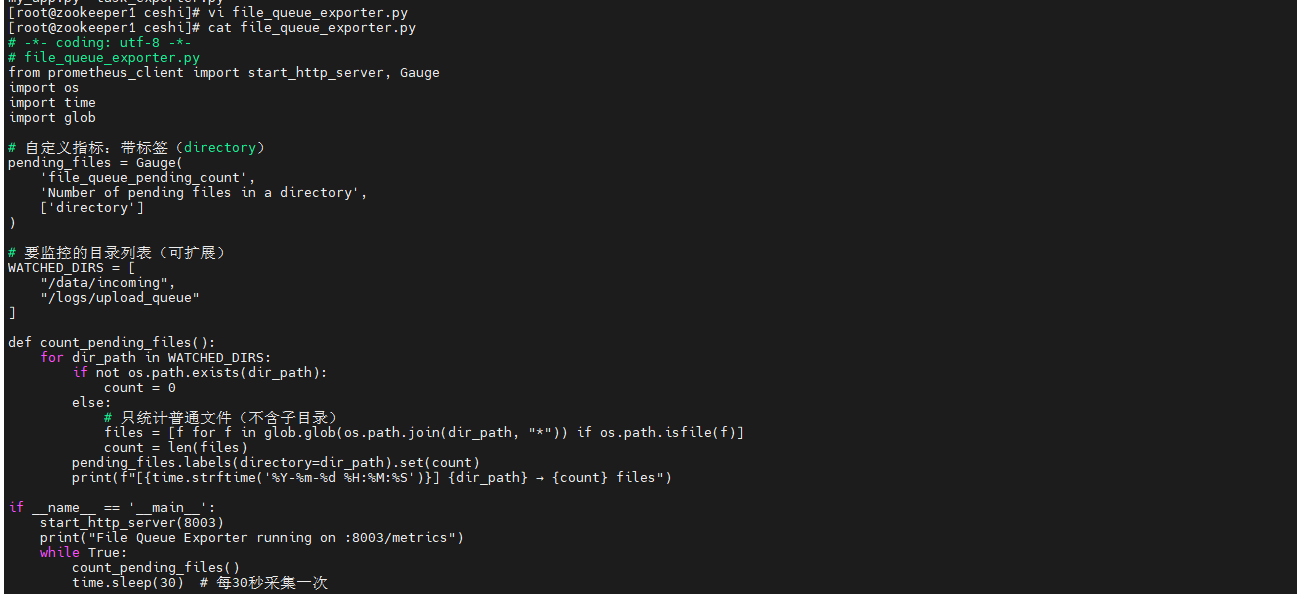
3.2 创建自定义Exporter
创建文件file_queue_exporter.py:
# -*- coding: utf-8 -*-
# file_queue_exporter.py
from prometheus_client import start_http_server, Gauge
import os
import time
import glob

# 自定义指标:带标签(directory)
pending_files = Gauge(
    'file_queue_pending_count',
    'Number of pending files in a directory',
    ['directory']
)

# 要监控的目录列表(可扩展)
WATCHED_DIRS = [
    "/data/incoming",
    "/logs/upload_queue"
]

def count_pending_files():
    for dir_path in WATCHED_DIRS:
        if not os.path.exists(dir_path):
            count = 0
        else:
            # 只统计普通文件(不含子目录)
            files = [f for f in glob.glob(os.path.join(dir_path, "*")) if os.path.isfile(f)]
            count = len(files)
        pending_files.labels(directory=dir_path).set(count)
        print(f"[{time.strftime('%Y-%m-%d %H:%M:%S')}] {dir_path} → {count} files")

if __name__ == '__main__':
    start_http_server(8003)
    print("File Queue Exporter running on :8003/metrics")
    while True:
        count_pending_files()
        time.sleep(30)  # 每30秒采集一次
3.3 运行Exporter
创建/data/incoming文件并启动脚本:
mkdir -p /data/incoming /logs/upload_queue python3 file_queue_exporter.py &

3.4 配置prometheus监控
进入prometheus配置文件:
  - job_name: 'file'
    static_configs:
      - targets: ['localhost:8003']

3.5 配置alertmanager告警
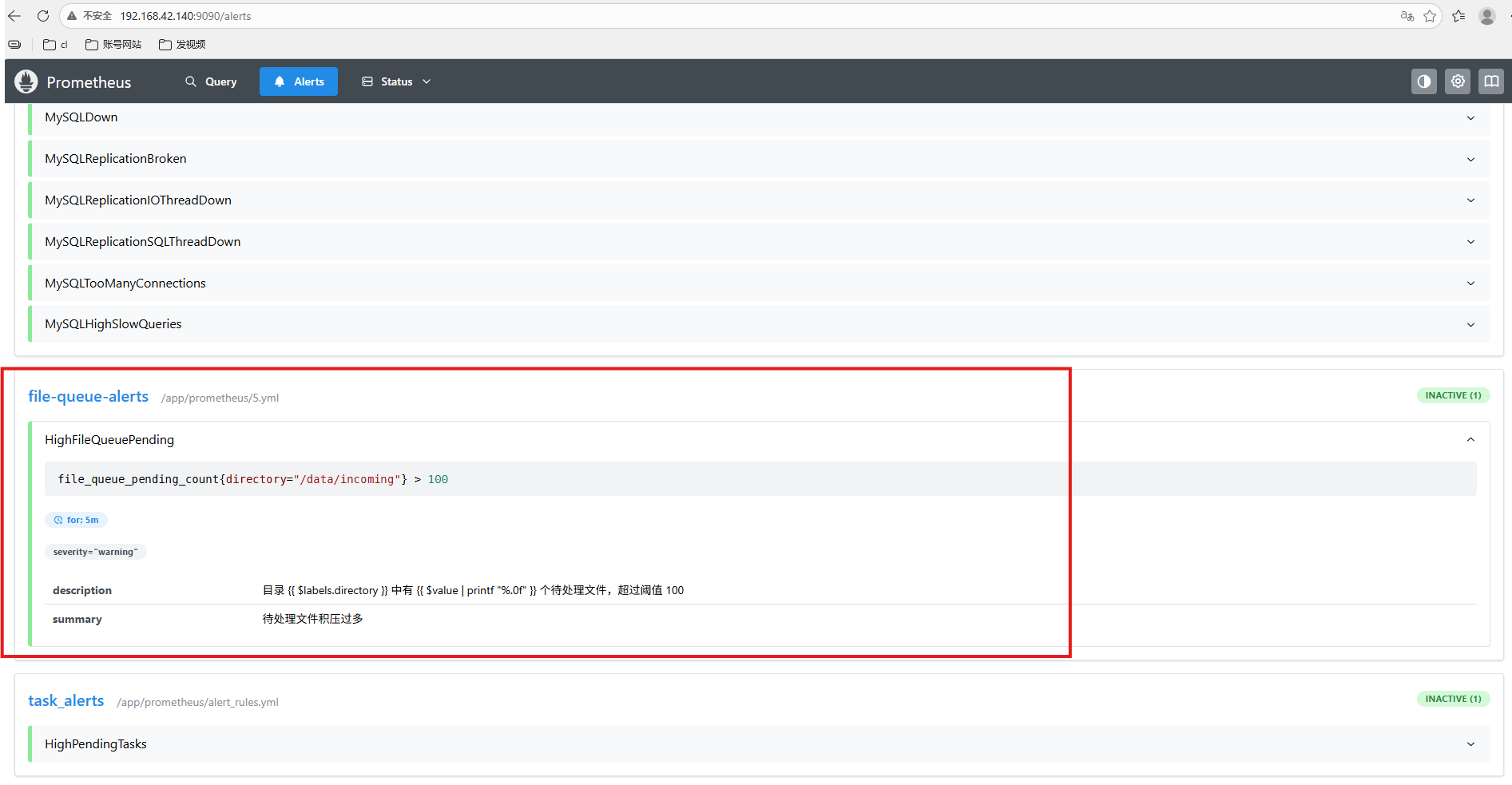
编写告警文件:
groups:
- name: file-queue-alerts
  rules:
  - alert: HighFileQueuePending
    expr: file_queue_pending_count{directory="/data/incoming"} > 100
    for: 5m
    labels:
      severity: warning
    annotations:
      summary: "待处理文件积压过多"
      description: "目录 {{ $labels.directory }} 中有 {{ $value | printf \"%.0f\" }} 个待处理文件,超过阈值 100"
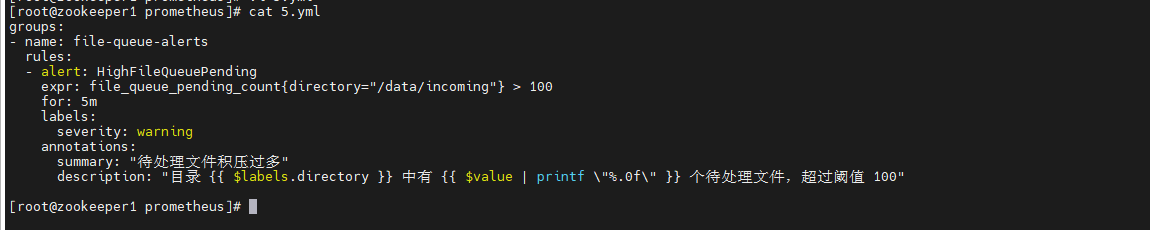
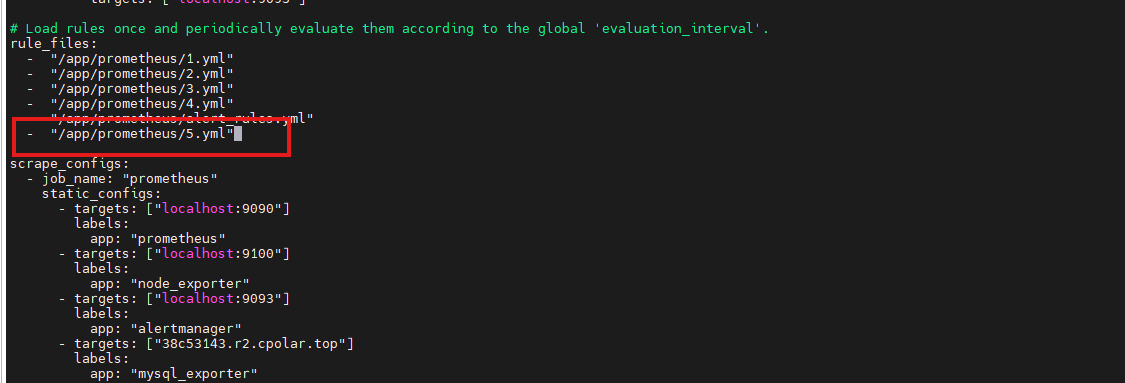
把告警规则加入到prometheus监控中:
如图所示,加入指定位置:
重启prometheus服务:
systemctl restart prometheus
systemctl status prometheus
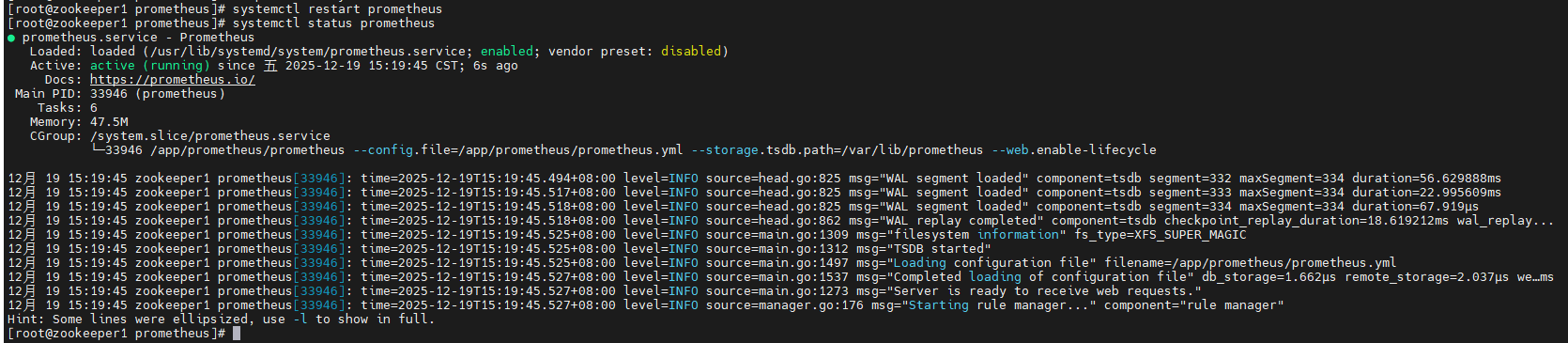
打开 Prometheus Web UI(通常是 http://ip:9090),可以看到告警规则了。
3.6 模拟积压
确保目标目录已创建:
ls /data/incoming
生成 150 个测试文件:
使用Shell循环快速创建一批 .json 文件,模拟数据流入:
for i in {1..150}; do
    touch /data/incoming/data_${i}.json
done
使用命令查看是否成功:
ls -l /data/incoming

运行以下命令检查Prometheus指标是否已更新:
curl http://localhost:8003/metrics | grep file_queue_pending_count

打开 Prometheus Web UI(通常是 http://ip:9090),我们可以看到已经告警(默认大于100就告警)。
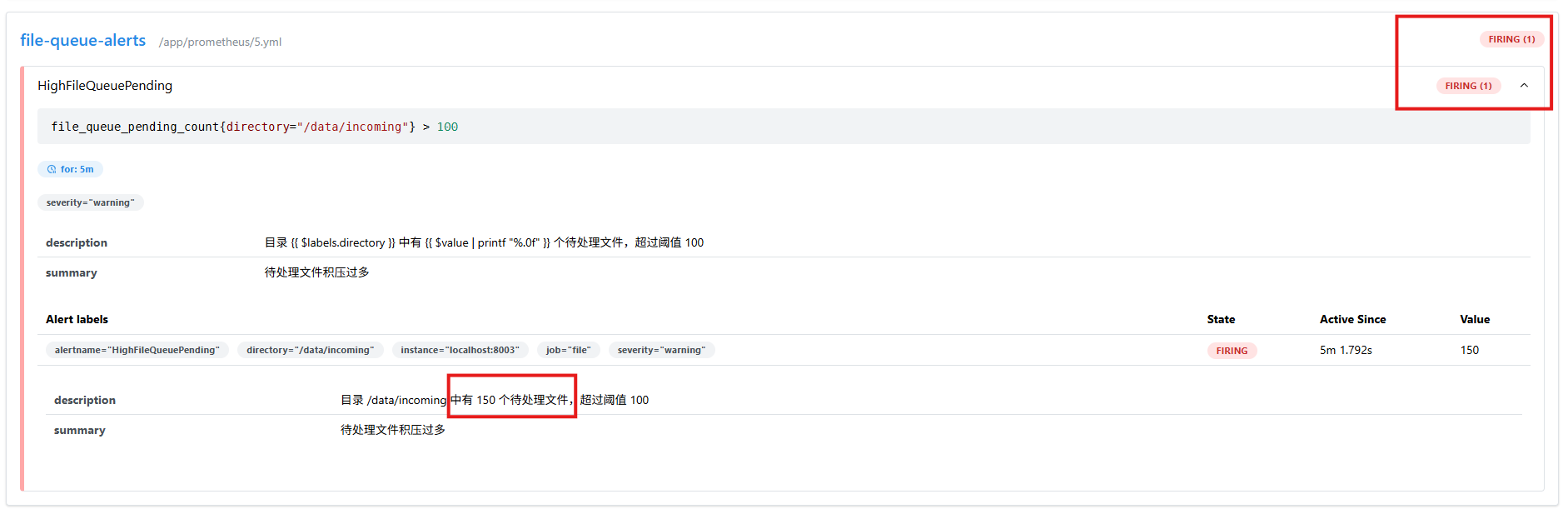
那么我们整个过程就暂时结束啦,过程还是很有趣的,那么我现在有一个问题,倘若我们想在家里监控公司的自定义参数,我们如何监控到呢?
别急,cpolar来解决你这个问题!
4.安装cpolar实现随时随地开发
cpolar 可以将你本地电脑中的服务(如 SSH、Web、数据库)映射到公网。即使你在家里或外出时,也可以通过公网地址连接回本地运行的开发环境。
❤️以下是安装cpolar步骤:
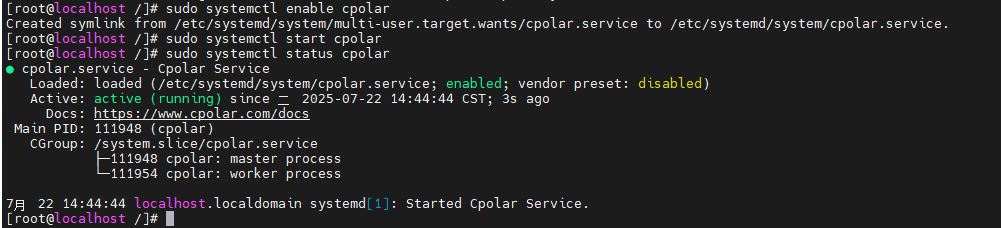
使用一键脚本安装命令:
sudo curl https://get.cpolar.sh | sh
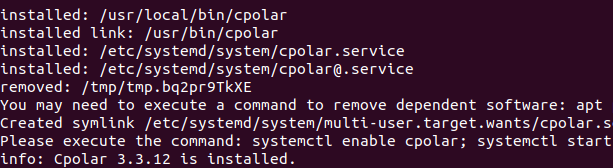
安装完成后,执行下方命令查看cpolar服务状态:(如图所示即为正常启动)
sudo systemctl status cpolar
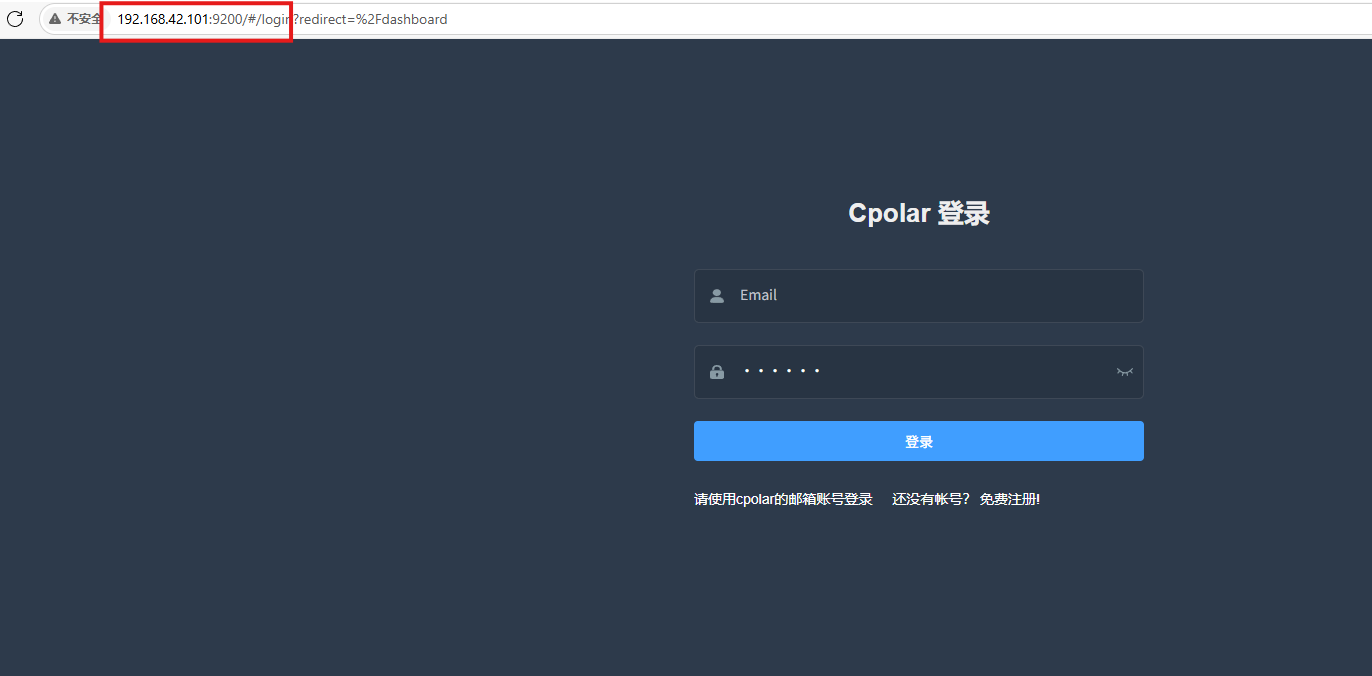
Cpolar安装和成功启动服务后,在浏览器上输入虚拟机主机IP加9200端口即:【http://192.168.42.101:9200】访问Cpolar管理界面,使用Cpolar官网注册的账号登录,登录后即可看到cpolar web 配置界面,接下来在web 界面配置即可:
打开浏览器访问本地9200端口,使用cpolar账户密码登录即可,登录后即可对隧道进行管理。
5.配置公网地址
本文使用8001端口测试。
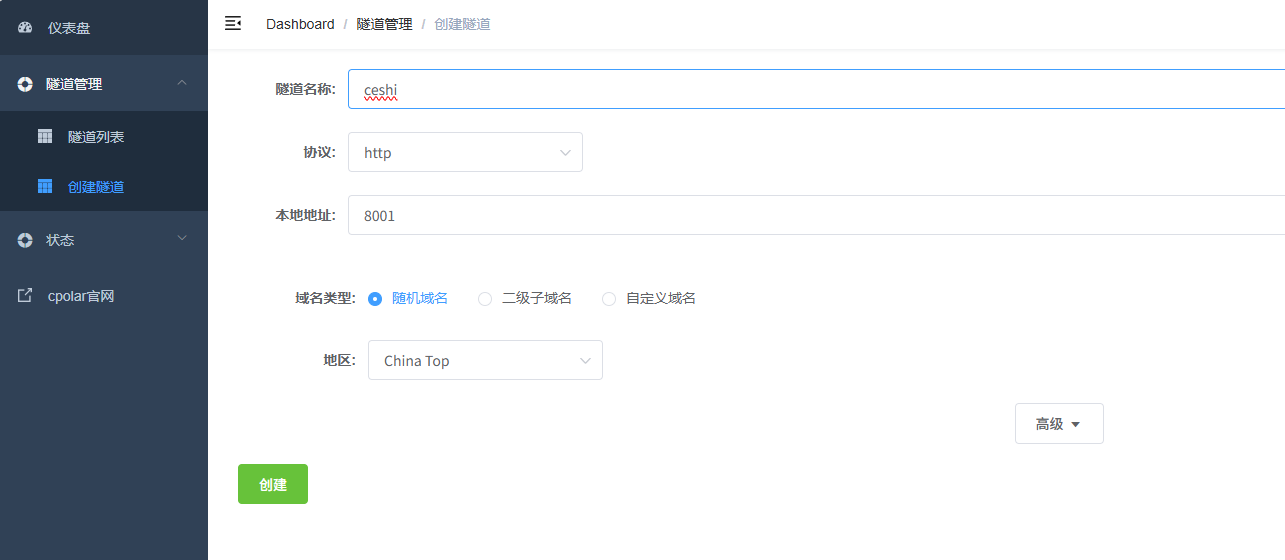
登录cpolar web UI管理界面后,点击左侧仪表盘的隧道管理——创建隧道:
- 隧道名称:可自定义,本例使用了:ceshi,注意不要与已有的隧道名称重复
- 协议:http
- 本地地址:8001
- 域名类型:随机域名
- 地区:选择China Top
点击创建:
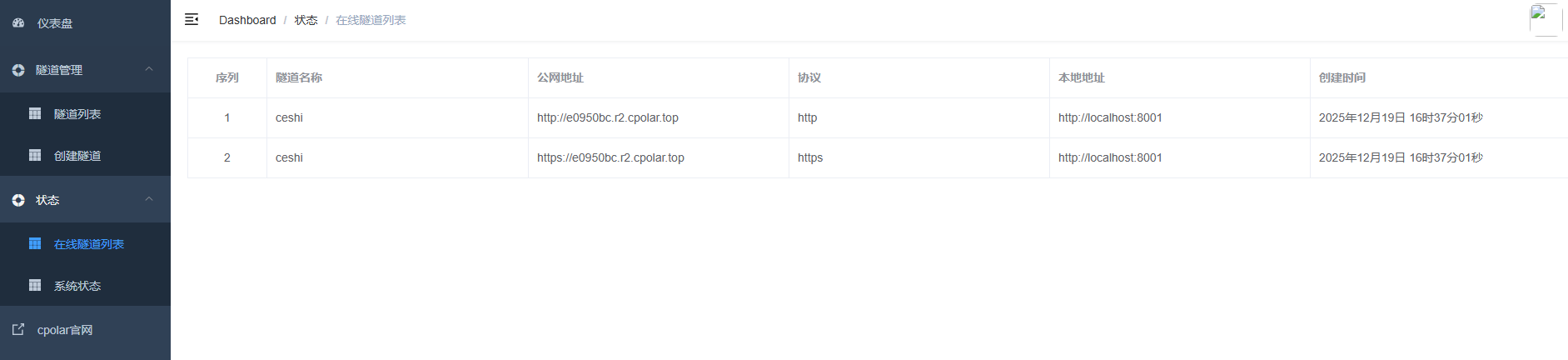
创建成功后,打开左侧在线隧道列表,可以看到刚刚通过创建隧道生成了公网地址,接下来就可以在其他电脑或者移动端设备(异地)上,使用地址访问。
这回,我们在prometheus配置文件下,配置监控公网地址:
  - job_name: 'my-app'
    static_configs:
      - targets: ['e0950bc.r2.cpolar.top']

监控成功:

6.保留固定公网地址
使用cpolar为其配置二级子域名,该地址为固定地址,不会随机变化。
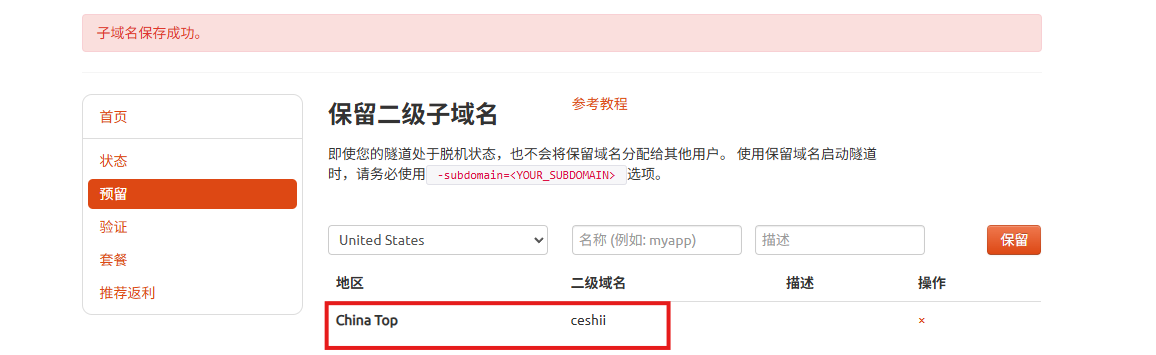
点击左侧的预留,选择保留二级子域名,地区选择china top,然后设置一个二级子域名名称,我这里演示使用的是ceshii,大家可以自定义。填写备注信息,点击保留。
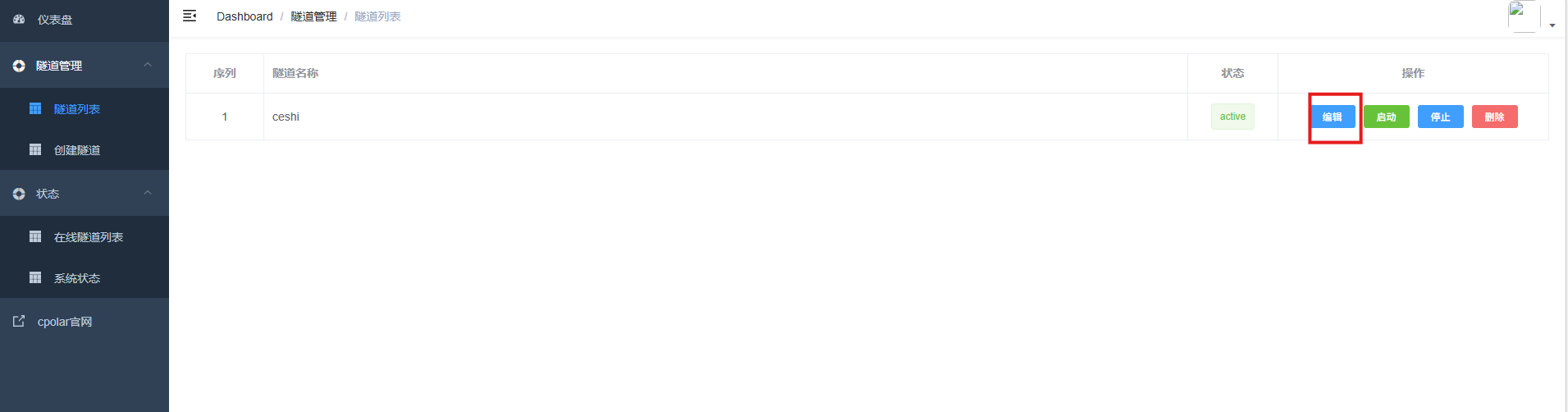
登录cpolar web UI管理界面,点击左侧仪表盘的隧道管理——隧道列表,找到所要配置的隧道prometheus,点击右侧的编辑。
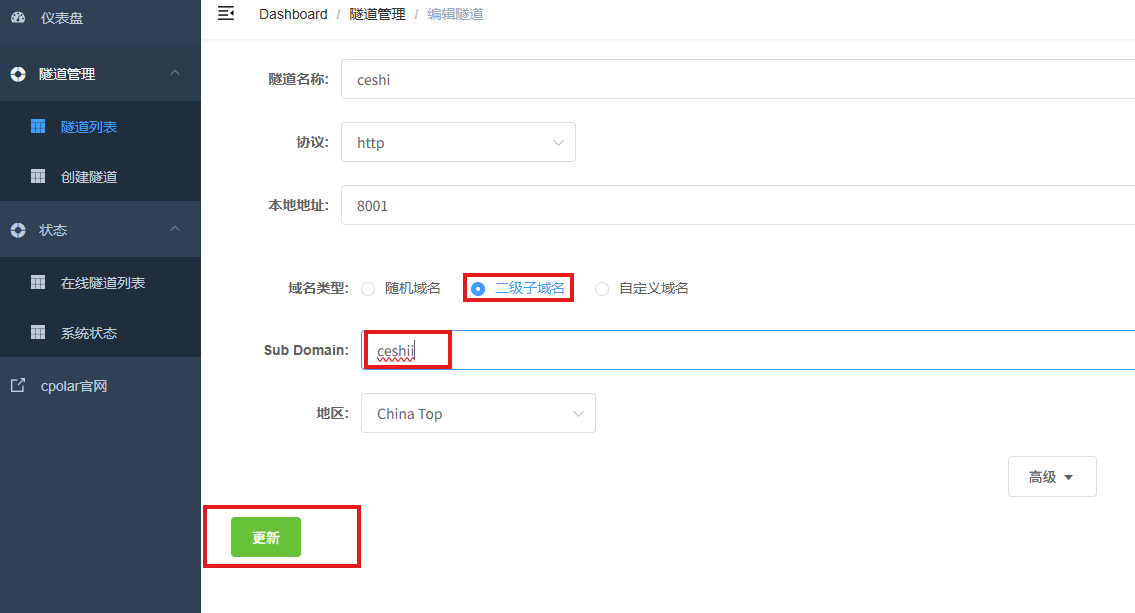
修改隧道信息,将保留成功的二级子域名配置到隧道中
- 域名类型:选择二级子域名
- Sub Domain:填写保留成功的二级子域名
- 地区: China Top
点击更新
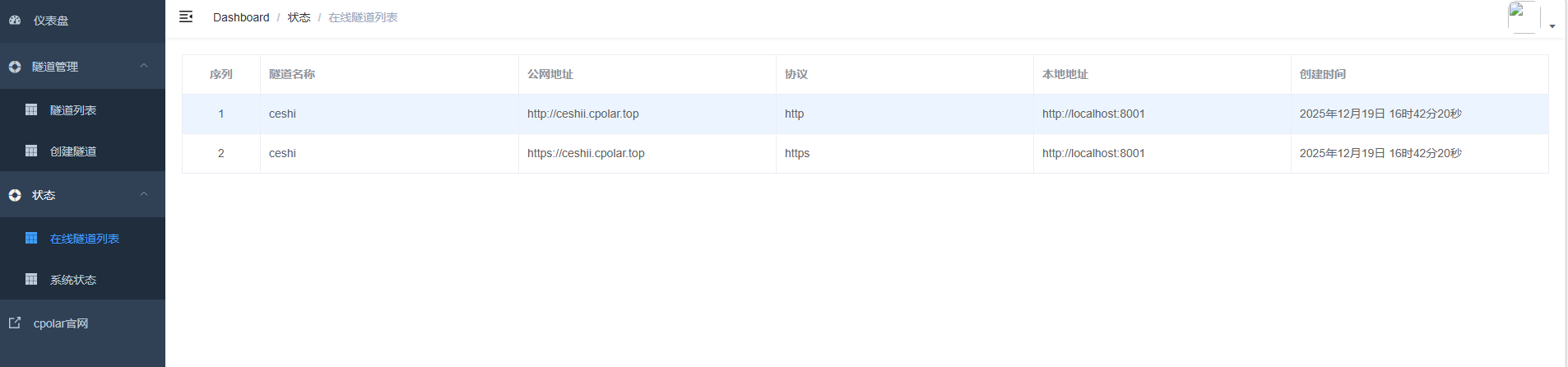
更新完成后,打开在线隧道列表,此时可以看到随机的公网地址已经发生变化,地址名称也变成了保留和固定的二级子域名名称。
最后,我们使用固定的公网地址在任意设备的浏览器中访问,可以看到成功访问本地部署的页面,这样一个永久不会变化的二级子域名公网网址即设置好了。
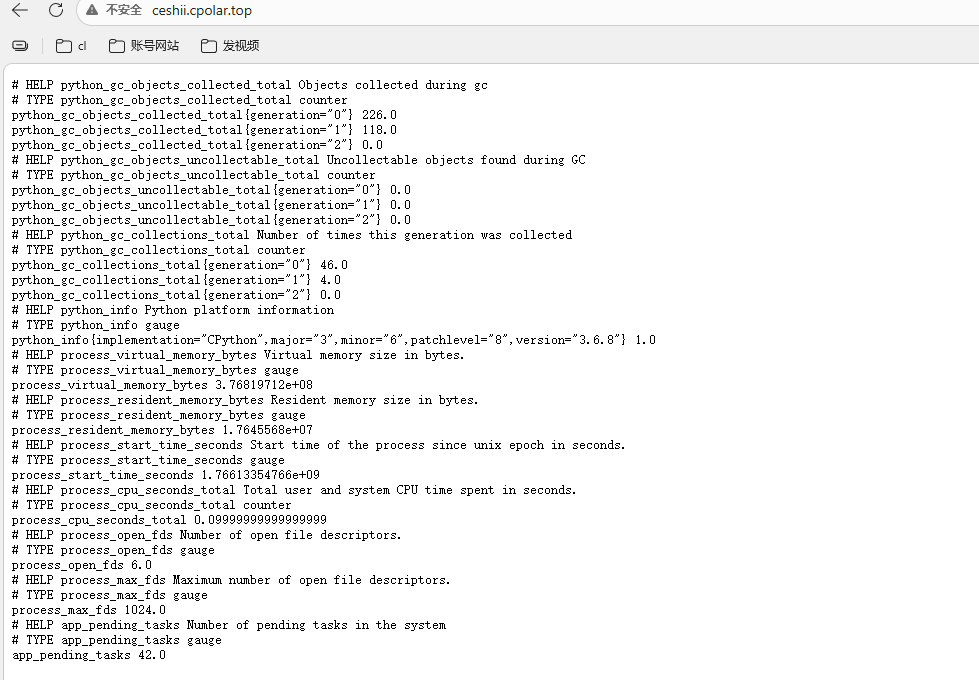
这样,我们就可以随时随地监控,不用担心,在家无法监控设备!
总结
文章总结:如何让Prometheus监控你自己的数据?—— 自定义指标全解析Prometheus默认监控系统级指标,但真正的业务洞察来自自定义指标。本文详解了从零实现自定义监控的完整路径:
- 定义业务指标(如待处理文件数、API成功率、任务队列长度);
- 开发Exporter,通过 /metrics接口以标准格式暴露指标;
- 配置Prometheus抓取目标,并使用PromQL 查询与告警;
- 解决网络限制:若服务位于内网,借cpolar等内网穿透工具,安全暴露端口,实现远程监控。
通过自定义指标,Prometheus不再只是“看机器是否活着”,而是真正回答:“业务是否正常运行?”——这才是可观测性的核心价值。
感谢您对本篇文章的喜爱,有任何问题欢迎留言交流。cpolar官网-安全的内网穿透工具 | 无需公网ip | 远程访问 | 搭建网站